Worker
A worker connects a Docker host to the application and performs the operations you request.
Learn about workers →Learn how to connect a Docker host and take an application from a Git repository to a running deployment.
A worker connects a Docker host to the application and performs the operations you request.
Learn about workers →A deployment is the complete configuration and running result of one project on a selected worker.
Learn about deployments →Everything in the panel is also a command. Install worqer-cli as a native macOS cask with Homebrew or run its minimal Linux image with Docker. Both distributions act as your approved account and send operational data directly to worq3r-api.
# Native macOS CLI
brew install --cask iagorithm/tap/worqer-cli

# Or the Linux container image
docker pull cjarn/worq3r-cli:latest
mkdir -p "$HOME/data"
docker run -d --name worqer-cli-container --restart unless-stopped \
  --user "$(id -u):$(id -g)" \
  -v "$HOME/data:/data" cjarn/worq3r-cli:latest
docker exec -it worqer-cli-container worqer-cli login
docker exec -it worqer-cli-container worqer-cli install
docker exec -it worqer-cli-container worqer-cli deploy my-appworqer.app separates the place where a developer configures an application from the Docker host where it runs. The panel provides one interface for projects, workers and deployments; each worker connects an authorized Docker host and executes the requested deployment there.
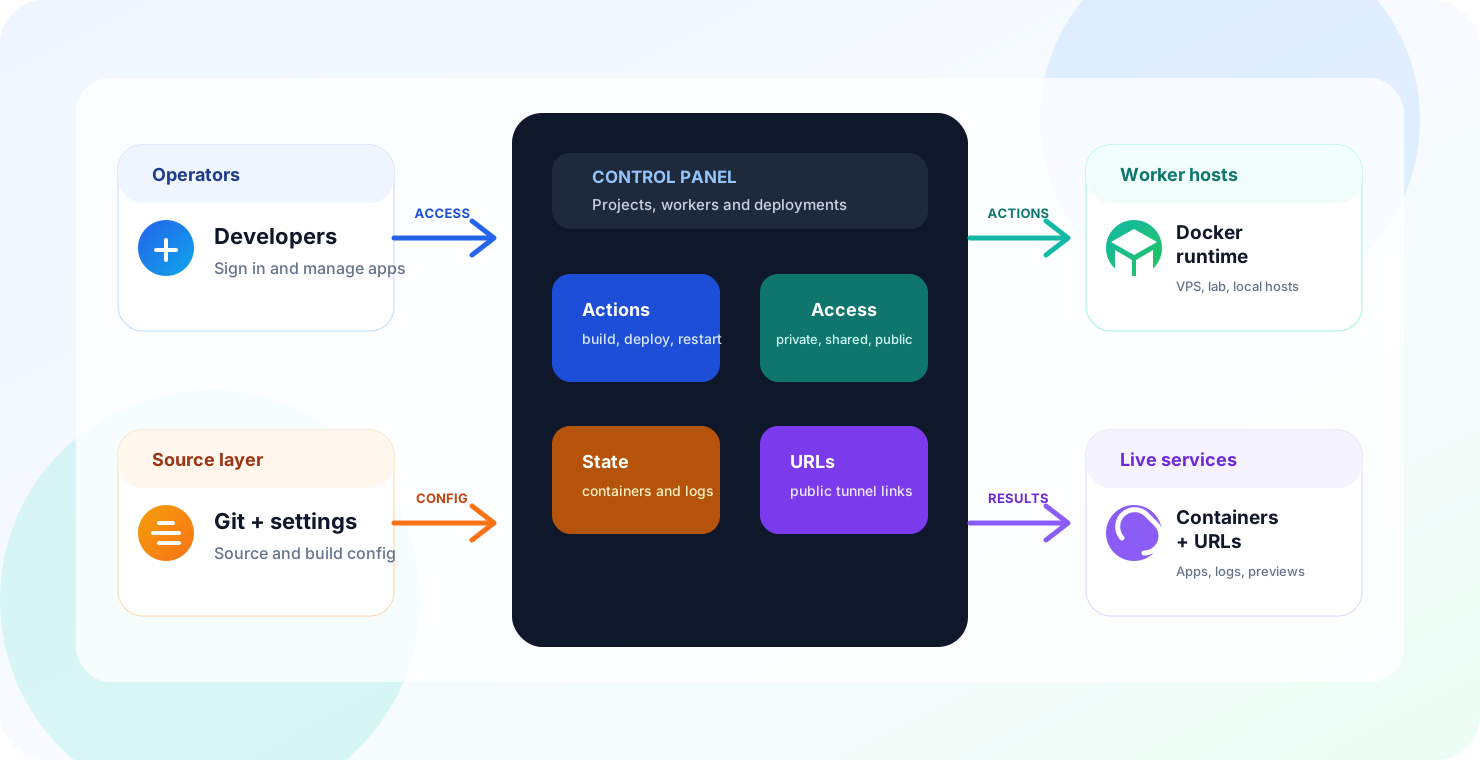
Developers add a Git repository, choose a branch and define Build, Environment and access settings.
The panel organizes projects, selects the destination worker and exposes deployment operations in one interface.
The selected worker builds and runs the application with Docker on its connected machine.
Containers, status, logs, ports and optional public URLs appear as the deployment result.
The panel can manage multiple Docker hosts without moving their runtime into the web application. The worker stays close to Docker, and every project explicitly selects where it should run.
Connect multiple machines as named workers and choose where each project should run without changing the project workflow.
Keep the repository, branch, build mode, variables and worker together so a deployment can be repeated consistently.
Use a clear build selector and display only the settings relevant to the chosen mode.
Deploy, restart, inspect logs, execute configured commands, stop and remove applications from one deployments view.
Expose the intended service through ngrok, see its URL beside the deployment and close the tunnel when it is no longer needed.
Show deployment results and actionable worker or ngrok errors near the affected application.
A worker represents a Docker host where your applications can be cloned, built and run. Add at least one worker before creating a deployment.
Worker owners can expand a worker card and install its internal Nginx service. Worqer creates the container as worq3r-ngnix, validates attached .conf files, and provides discreet controls to start, stop, apply configuration, or remove it.
This Nginx instance belongs to the worker and does not appear in the application container list. Its files are stored visibly on the worker host under ~/data/nginx, while the editable configuration also remains in the API.
You can create a worker on a new Docker host or use one that is already running. In both cases, the worker must appear online and be available to your user before assigning it to a project.
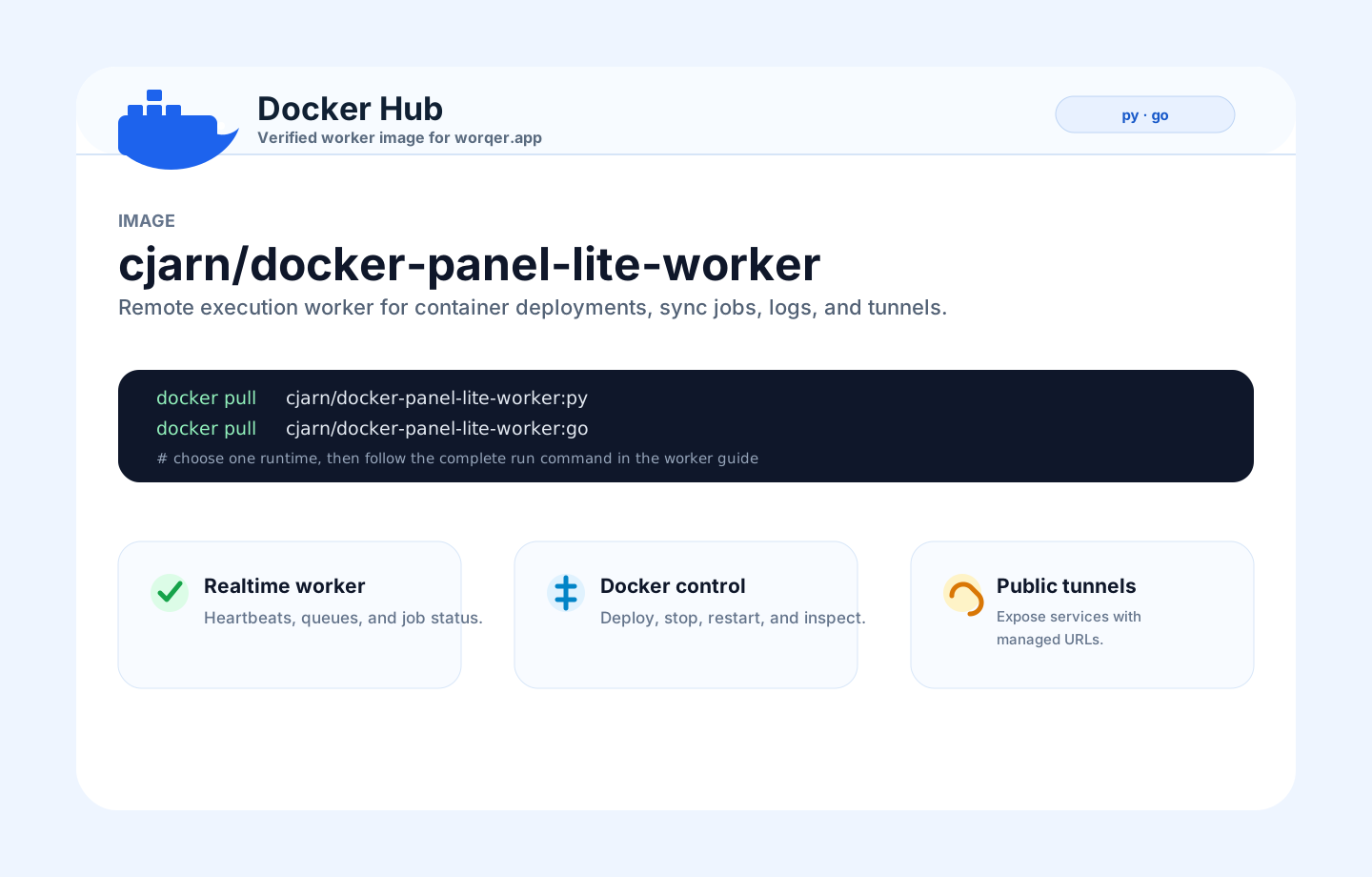
Run the worker image on the Docker host, preserve its data directory and claim it using the token printed in its logs.
Create a worker →Claim an unassigned worker with its token, or select an available worker that is already connected to the workspace.
Use an existing worker →Start the Runner with a persistent data directory. On its first start, if no saved session exists, the image automatically opens a worqer.app activation from its logs. After approval it saves the session and continues running without recreating the container.
mkdir -p "$HOME/data/clones" "$HOME/data/nginx"

docker run -d --pull always \
  --name worq3r-runner \
  --restart unless-stopped \
  --label app.worqer.role=worker \
  -v /var/run/docker.sock:/var/run/docker.sock \
  -v "$HOME/data:/app/data" \
  -v "$HOME/data/clones:/app/clones" \
  cjarn/worq3r-runner:latest

docker logs -f worq3r-runnerOpen the URL printed by docker logs -f worq3r-runner and authorize the machine. The Runner saves firebase-session.json under the mounted /app/data, registers itself and continues online. Use the explicit ... cjarn/worq3r-runner:latest login subcommand only to replace or renew that saved login.
Run docker login -u cjarn only if Docker reports that the image is private or denies the pull.
Use this recovery flow to replace an expired or incorrect Runner session. Restart afterward so the main process loads the newly saved credentials.
docker exec -it worq3r-runner /bin/sh
worqer-runner login
exit
docker restart worq3r-runner
docker logs -f worq3r-runner
If docker exec reports that the container is restarting, the old image is exiting before a shell can attach. Run the login in a temporary container with the same data directory, then start the Runner again:
docker run --rm -it \
  --user "$(id -u):$(id -g)" \
  -v "$HOME/data:/app/data" \
  -v "$HOME/data/clones:/app/clones" \
  cjarn/worq3r-runner:latest login

docker restart worq3r-runnerAfter approval, the worker appears in Workers. If an older unassigned installation still requires a claim, copy its token from docker logs --tail 100 worq3r-runner.
Choose the case that matches the current state of the worker:
| Worker state | What to do |
|---|---|
| Running but not claimed | Read its token with docker logs --tail 100 worq3r-runner, enter it in Workers and select Claim. |
| Already visible to your user | No token is required. Open Project Settings → Environment and select it as the default worker. |
| Owned by another user | Ask the owner to share the worker with your user or make it available to the workspace. |
| Offline | As its owner, repeat the container creation command shown above. |
Each token is generated by its runner and must be copied from that host. Never publish, commit or reuse a test token for production infrastructure.
Open Project Settings → Environment and select the worker. Deploy, sync and runtime operations for that project will use the selected Docker host.
Start with the deployment event. Failed jobs preserve the final Docker output and exit code under Full worker output. The short message identifies the likely cause; the expandable output is the evidence needed to repair it.
| Symptom | What to check |
|---|---|
| Worker appears offline | Confirm its container is running, inspect worker logs, verify Firebase/network access, and confirm its system clock is correct. |
| Worker does not appear | Confirm the claim token, workspace assignment and worker ID, then refresh Workers. |
| Cannot connect to Docker | Confirm Docker is running and /var/run/docker.sock is mounted into the worker with usable permissions. |
| Deployment remains queued | Check worker online state, target worker selection, repository lock/lease expiry, and whether another deployment for the same project is active. |
| Worker stops during a build | Check host memory, disk space and kernel OOM logs. Docker builds require enough free storage for layers and build cache. |
| Project runs on the wrong host | Review the selected worker in the project Environment tab before redeploying. |
A deployment is everything required to turn a project into a running application. It combines the source, build instructions, environment, destination worker, running containers and access options in one place.
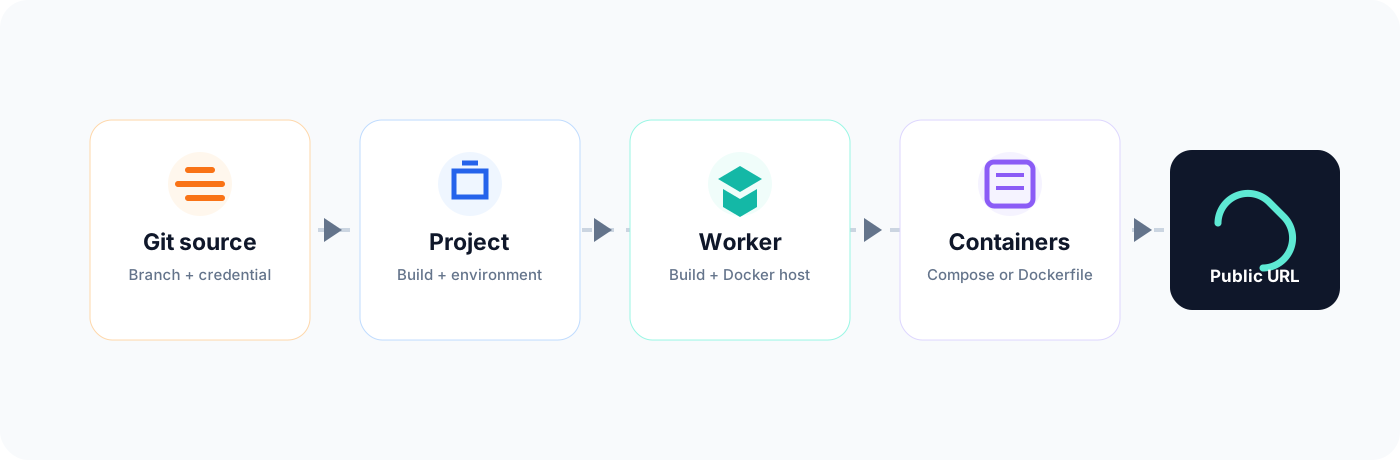
Project alias and description used to recognize the application.
Repository URL, branch and credential when the repository is private.
Docker Compose or Dockerfile mode, file paths, service and port configuration.
The variables the application needs while it is running.
The Docker host selected to build and run the application.
Containers, images, current status and exposed ports.
Visibility, permitted users, local addresses and optional public URLs.
Deployment results and errors that help verify or troubleshoot a release.
Register an existing local project or clone a repository. Configure its URL, branch and an authorized credential when needed. After a successful Register or Clone action, the project panel closes and the project appears in the list.
The Build tab defines how the application is created. The Environment tab contains runtime variables and the worker selector.
Use this for applications described by a Compose file. Select the file and configure the service and port used to reach the application.
Use this to build and run one service. Select the Dockerfile, build context and port mappings for that container.
Project Settings shows the fields related to Docker Compose or Dockerfile so it is clear what will run.
A deployment can remain private or expose a temporary public URL through ngrok. In the project Domain tab, enter the ngrok token first and then enable Public. You can generate a token from the discreet link next to the token field.
If ngrok rejects a session, review the message shown by the deployment. It may indicate account, billing, agent-limit, domain or upstream-port problems.
The icons below are the same ones used in the application. Primary actions remain visible on each row; actions marked More appear inside the three-dot menu. Some operations only appear when the worker and container are in an eligible state.
Project operations act on the Git source and the complete application configuration.
Pulls the latest source and refreshes project information from the selected worker.
Opens Git, Build, Environment, Domain and Access configuration.
Builds and starts the project using its selected Compose or Dockerfile mode.
Opens the compact menu that contains the less frequent project operations.
Reads and displays the build file detected on the selected worker.
Shows progress, results and errors from project operations.
Creates or regenerates the configured ngrok URLs.
Stops the public tunnels created for the project.
Stops the Compose stack or Dockerfile-managed service without deleting the project.
Deployment operations act on an individual Docker container and its runtime.
Creates or regenerates public access for a running service.
Restarts the running container without rebuilding the project source.
Opens the compact menu with state-dependent container operations.
Starts a stopped container.
Runs the selected saved command inside an eligible running container.
Opens the runtime output for the selected container.
Stops a running container while preserving it.
Removes the managed container; use it only when the runtime is no longer needed.
Use Deploy after changing source, Build or Environment. Use Restart when the current deployed version only needs to restart at runtime.
Deploy is idempotent: Compose deployments use --build --force-recreate --remove-orphans. Repeating Deploy replaces the current project containers; it does not require a manual stop first.
| Failure | Repair |
|---|---|
| Port already allocated | On the selected worker run docker ps --format '{{.Names}} {{.Ports}}'. Stop the unrelated container using that host port or change the project's published port. Containers from the same Compose project are replaced automatically. |
| Docker socket permission denied | Verify the worker has /var/run/docker.sock:/var/run/docker.sock and permission to access it. Restart the worker after correcting the mount or group permissions. |
| No space left on device | Run df -h and docker system df. Remove only confirmed unused images, containers or build cache; preserve project volumes. |
| Pull access denied / unauthorized | Verify the image name and registry authentication on that worker. Private Git credentials do not authenticate Docker registries. |
| Required variable missing | Compare project Environment settings with every ${VARIABLE:?message} expression in Compose. Save settings and redeploy. |
| Container unhealthy / dependency failed | Open the affected container logs, then inspect its healthcheck command, interval, start period and dependency URL. A running container can still be unhealthy. |
| Dockerfile build failed | Expand Full worker output. The final lines retain the failing stage, command and package/compiler error. |
| Repository cannot be cloned | Verify URL, branch, selected Git credential and outbound network access from the worker. |
| Application is not reachable | Confirm container status, published port, application bind address (0.0.0.0, not only localhost), and the configured internal port. |
| Public URL fails | Use the exact ngrok error from the event; check token, account limits, domain ownership and selected Compose service. |
docker compose -p PROJECT -f compose.yaml ps from the worker.docker compose -p PROJECT -f compose.yaml logs --tail=200 SERVICE.